
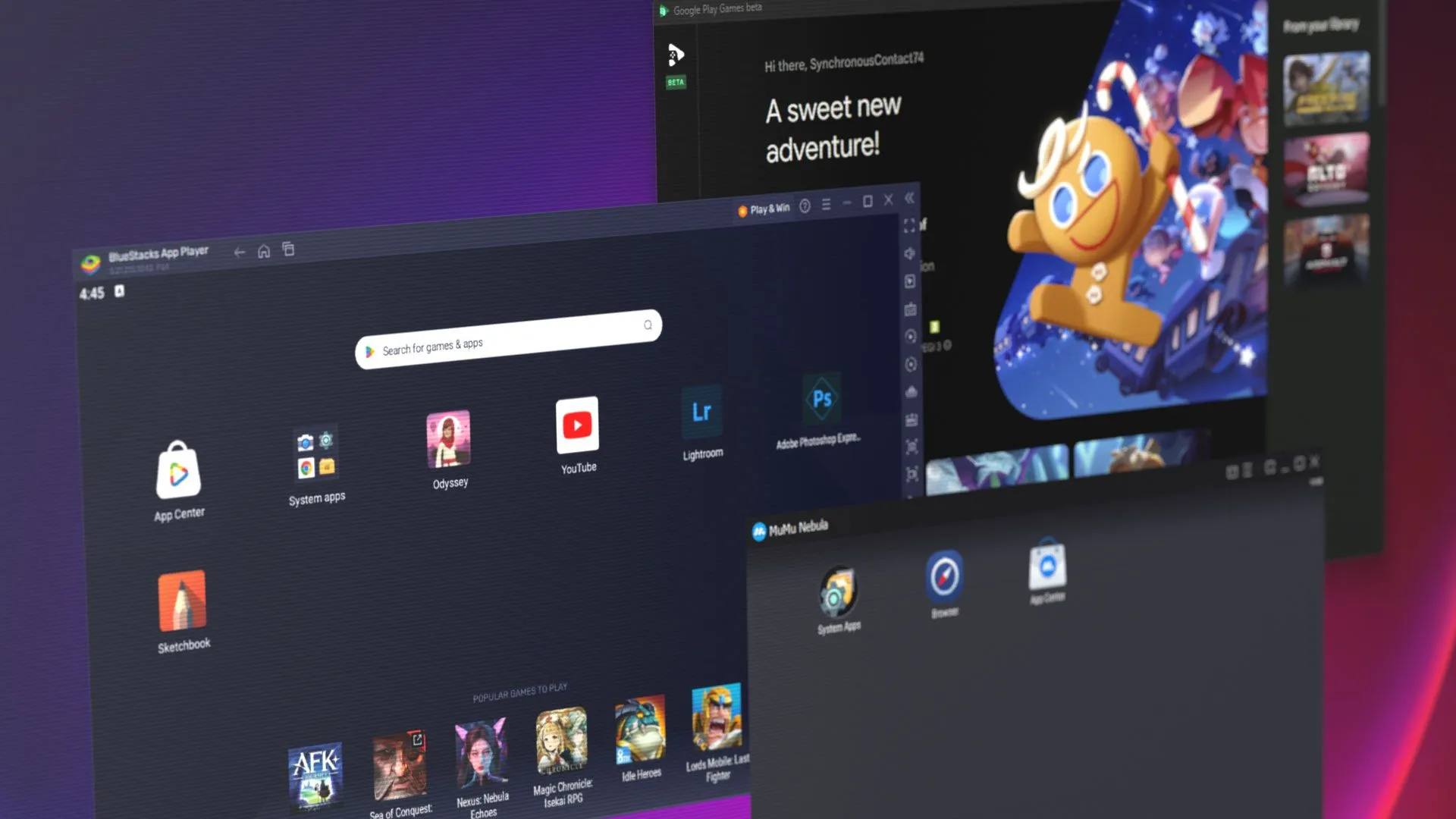
best android emulator for pc is one of those searches you make when you’re tired of small screens, low battery, and laggy gameplay on mobile. Maybe you want to play Android games with a keyboard and mouse, maybe you want to run apps for work, or maybe your phone just can’t handle heavy titles anymore.
I’ve been there.
I remember trying to grind a competitive mobile game on a budget phone. The heat was real, the frame drops were painful, and the battery drained like someone left the flashlight on all day. One day I installed an emulator on my PC, connected my account, and suddenly everything felt smoother. Bigger screen. Better controls. More comfort.
But then came the second problem.
Not every emulator is good.
Some emulators run like a dream. Some feel heavy, crash often, or come with annoying ads and bloatware. Some are perfect for gaming but bad for productivity apps. Some work great on high-end PCs but struggle on mid-range laptops.
That’s why this guide exists.
This article is written with real user experience in mind, based on what actually matters: performance, safety, compatibility, features, and ease of use. No confusing tech talk, no robotic comparisons—just practical help so you can pick the right emulator and start using it confidently.
Table of Contents
ToggleWhat an Android Emulator Really Does (And Why People Use It)
An Android emulator is software that lets you run Android apps and games on your Windows PC or laptop.
Think of it like creating a virtual Android phone inside your computer.
People use emulators for many reasons:
Some want better controls for mobile games
Some want higher FPS and smoother graphics
Some want to use Android apps for work or messaging
Some want to test apps and run multiple accounts
Some want to record gameplay or stream easily
The main advantage is simple: your PC is usually more powerful than your phone.
And when your device is stronger, your experience improves.
Why Choosing the Right Emulator Matters More Than You Think
Here’s the truth: the emulator you choose can change everything.
A good emulator feels smooth, stable, and clean. It launches fast, runs games without freezing, and doesn’t make your PC feel like it’s carrying a mountain.
A bad emulator feels like trouble from day one.
Slow boot times. Random crashes. Stuttering gameplay. Weird glitches. Too many ads. Confusing settings. And sometimes even suspicious files that make you question what you just installed.
So if you want the best android emulator for pc, don’t just download the first one you see.
Pick one that matches your PC and your purpose.
The 2 Main Types of Android Emulators (Gaming vs Productivity)
Not all emulators are built for the same goal.
Some emulators are designed mainly for gaming. They focus on high FPS, key mapping, macro features, and smooth performance.
Other emulators are more focused on development or productivity. They aim for accuracy, compatibility, and stable app testing.
If your goal is gaming, you’ll want features like:
Keyboard mapping
Multi-instance support
High FPS mode
Game optimization settings
If your goal is apps and productivity, you’ll want:
Stable Android versions
Clean interface
Strong app compatibility
Less bloat and fewer distractions
Knowing your goal makes the choice easier.
What Makes the Best Android Emulator for PC in 2026?
To choose the right emulator, you need to focus on the features that matter in real life, not just marketing claims.
A strong emulator should offer smooth performance even on mid-range PCs, support popular Android games, and run without crashing.
It should also be safe to download from official sources and not force unnecessary add-ons.
And most importantly, it should feel easy to use.
If an emulator feels confusing or annoying in the first 10 minutes, it won’t get better later.
The best emulator is the one you can install today and enjoy without headaches.
Performance Factors: Why Some PCs Run Emulators Better
A common misunderstanding is that emulators are “heavy” by default.
In reality, your PC setup plays a big role.
Emulators run better when your PC has:
A decent CPU (multi-core helps a lot)
Enough RAM (8GB is a good starting point)
SSD storage (faster loading and smoother performance)
Updated graphics drivers
Also, virtualization support is a game-changer.
If virtualization is enabled in your BIOS settings, your emulator performance can improve dramatically. Games load faster, apps run smoother, and multi-instance becomes more stable.
Many people don’t enable virtualization and then wonder why everything lags.
Popular Choices People Trust for Gaming and Smooth FPS
When people ask for the best android emulator for pc, they usually want a smooth gaming experience first.
The most trusted emulators in the gaming community are popular because they offer stable updates, good performance, and strong support for competitive titles.
They also provide useful features like:
Smart key mapping for shooters
Multi-instance for farming or multiple accounts
Macro tools for repetitive actions
Screen recording and streaming support
If you’re playing action games, battle royale titles, or fast-paced multiplayer games, these features matter a lot.
Because in competitive gaming, small lag becomes a big disadvantage.
The “Lightweight Emulator” Myth: What Actually Works
Many people search for a lightweight emulator because they have a low-end PC.
But here’s the honest truth: there is no magic emulator that runs heavy games perfectly on weak hardware.
However, some emulators are optimized better than others.
A “lightweight” emulator usually means:
Less background usage
Faster boot times
Fewer ads and extra processes
Better performance on 4GB–8GB RAM systems
If your PC is not high-end, the best approach is to choose an emulator known for optimization and then adjust settings like resolution, FPS cap, and graphics mode.
That gives you a real boost without needing expensive upgrades.
Best Settings to Improve Emulator Speed (Without Extra Tools)
Even the best emulator can feel slow if your settings are wrong.
Most performance issues come from running too high resolution, too many FPS, or incorrect graphics settings.
A balanced setup usually gives the best results.
If your game stutters, try lowering resolution slightly and setting FPS to a stable level instead of pushing maximum.
Also, choose the right rendering mode.
Some games run better on DirectX. Others run better on OpenGL. It depends on your system and the game.
The key is simple: smooth and stable beats high and unstable.
Safety and Trust: Avoiding Fake Emulators and Bad Downloads
This part matters more than people admit.
Not every emulator download online is safe.
Some websites bundle emulators with extra installers, adware, or suspicious files. That’s how users end up with slow PCs, pop-up ads, or browser hijacks.
If you care about safety, always download from the official website of the emulator.
Also, pay attention during installation.
Don’t rush through “Next, Next, Next” without reading. Some installers try to sneak in extra software.
A clean emulator setup feels professional.
A shady one feels like regret.
Multi-Instance Mode: The Feature Power Users Love
Multi-instance means you can run more than one Android session at the same time.
This is useful for people who play games with multiple accounts, or those who farm resources while doing other tasks.
It’s also useful for streamers who want to manage different profiles.
But multi-instance can be heavy on your PC.
If you plan to use it, make sure your system has enough RAM and CPU power. Otherwise, everything will slow down.
For most casual users, one instance is enough.
For advanced users, multi-instance becomes a serious advantage.
Keyboard and Mouse Controls: Why Emulators Feel Better Than Mobile
One of the biggest reasons people use emulators is control.
Touchscreen gaming is fun, but it’s not always comfortable.
On PC, you get:
More accurate aiming
Faster movement control
Better reaction timing
Less hand fatigue during long sessions
This is why shooters and action games feel easier on emulators.
And once you get used to keyboard and mouse, going back to mobile can feel strange.
That’s why choosing the best android emulator for pc matters—because the right one gives you smooth controls without delay.
App Compatibility: Running Non-Gaming Apps Smoothly
Not everyone uses an emulator for gaming.
Many people want Android apps like messaging, shopping, editing tools, or learning apps on PC.
The best emulators for productivity are usually the ones that feel clean and stable, with fewer distractions.
You also want strong Google Play support and proper login stability.
Because the last thing you want is an emulator that crashes every time you open a basic app.
If your goal is productivity, prioritize stability over flashy gaming features.
Android Version Support: Why It Affects Your Experience
Android emulators run different Android versions.
Some run Android 7 or 9. Some offer Android 11 or newer versions depending on updates.
Why does it matter?
Because some apps and games require newer Android versions. Others work better on older versions for stability.
A good emulator gives you options.
It should let you choose the version that works best for your needs, without making setup complicated.
This flexibility is a sign of a mature, well-supported emulator.
Real-Life Example: How the Right Emulator Saves Time and Stress
Let me share a simple example.
Imagine you’re playing a competitive mobile game. You’re serious about improving. You want stable FPS, clean controls, and less distraction.
You install an emulator that looks popular, but it’s full of ads. It stutters in fights. It crashes randomly. You lose matches because of lag. Your mood gets ruined.
Then you switch to a better emulator.
Suddenly the game runs smoother, the controls feel responsive, and your sessions become enjoyable again. You don’t feel exhausted after one hour. You actually want to play.
That difference isn’t small.
It’s the difference between gaming as stress and gaming as fun.
How to Choose the Best Android Emulator for PC for Your Needs
The best emulator depends on what you want.
If your goal is high-performance gaming, choose an emulator known for FPS stability, key mapping, and optimization.
If your goal is running apps for productivity, choose a cleaner emulator with stable Google services and fewer extra features.
If your PC is low-end, choose something lightweight and tune the settings for performance.
If you want multi-instance farming, choose an emulator that handles multiple sessions without crashing.
There is no “one emulator for everyone.”
But there is always one emulator that’s best for you.
That’s the real meaning of finding the best android emulator for pc.
Common Problems and Quick Fixes (So You Don’t Waste Hours)
Sometimes emulators don’t work perfectly at first.
You might face black screens, lag, or app crashes.
Most of the time, the fix is simple:
Enable virtualization in BIOS
Update your graphics drivers
Switch rendering mode (DirectX/OpenGL)
Lower resolution and FPS settings
Allocate proper CPU and RAM in emulator settings
Small changes can completely transform performance.
So if your emulator feels slow, don’t uninstall immediately.
Tune it once and test again.
Best Use Cases: Who Should Use Android Emulators?
Android emulators are perfect for:
Gamers who want better controls and smoother gameplay
Students who want Android learning apps on PC
Content creators who want to record mobile gameplay
Players who want to grind without heating their phones
People who want a bigger screen for comfort
But emulators are not perfect for everyone.
If your PC is extremely old, you may struggle with performance. If you want maximum battery efficiency, a phone is still better.
The best choice depends on your situation.
A Smart Setup Routine for New Emulator Users
When you install an emulator, don’t rush into ranked matches immediately.
Take a few minutes to set things up properly.
Log in calmly, adjust graphics settings, test controls, and make sure your game runs smooth.
This one-time setup saves you from constant frustration later.
Also, keep your emulator updated.
Updates often fix bugs, improve stability, and add better game support.
A well-maintained emulator feels smooth for months.
A neglected one starts breaking slowly.
Final Tip: Don’t Chase “Perfect,” Chase “Stable”
The biggest mistake beginners make is trying to max everything out.
They push ultra graphics, highest FPS, highest resolution—and then complain about lag.
A stable 60 FPS feels better than unstable 120 FPS.
A smooth match feels better than a pretty match.
So even when searching for the best android emulator for pc, remember this: your settings matter as much as the emulator itself.
And once you find the right combination, you’ll wonder how you ever played mobile games without it.
best android emulator for pc choices are better than ever today, and with the right pick, your PC becomes the ultimate Android gaming and app machine.
Read also:
best sensitivity for free fire one-tap headshot 2024
best sensitivity for free fire one-tap headshot
roblox skin
best one tap sensitivity for free fire